PCAP Touchscreens Explained: Multi-Touch, Gloves and Waterproofing
By MHY Engineering Team · Updated · 11 min read
"Touchscreen" on a kiosk quotation can mean several different technologies with very different durability and reliability in the field. Almost every serious commercial kiosk today specifies projected capacitive (PCAP) touch, but the spec sheet still has real decisions buried in it: touch-point count, glove support, glass thickness and the ingress-protection rating of the front bezel. This guide unpacks what each of those actually controls, so you can read a quotation critically rather than just checking a box marked "touchscreen." See our self-service kiosk line, all built on PCAP touch, alongside it.
1. What PCAP touch actually is
Projected capacitive (PCAP) touch places a grid of thin, transparent electrodes on a layer just beneath the cover glass. Your fingertip carries a tiny electrical charge; when it approaches the glass, it disturbs the electric field at that grid location, and the controller calculates the touch coordinates from the disturbance pattern. Because the sensing layer sits below solid glass rather than relying on a flexible top film, PCAP screens can be sealed completely flat and support genuinely thick, tough cover glass — the same fundamental technology behind every modern smartphone screen.
2. PCAP vs infrared and resistive touch
| Technology | How it senses touch | Durability | Best for |
|---|---|---|---|
| PCAP | Electrical field disturbance under solid glass | Very high — sealed, scratch-resistant glass | Modern kiosks, public terminals, any high-traffic use |
| Infrared (IR) | Breaks an invisible light grid around the frame | Good, but frame can trap dust/liquid at the bezel | Very large screens (interactive walls, tables) |
| Resistive (film) | Physical pressure presses two conductive films together | Lower — the top film wears and can be punctured | Legacy or low-cost single-touch devices only |
Resistive touch is now mostly obsolete for public-facing kiosks: it requires noticeable pressure, degrades with wear, and cannot support a sealed, glove-friendly, multi-touch experience. Infrared remains useful mainly on very large interactive displays where PCAP sensor grids become impractical. For the 15 to 32 inch range that covers nearly every self-order, check-in and payment kiosk, PCAP is the default and the only technology we recommend specifying.
3. How many touch points does a kiosk need?
Consumer marketing likes to advertise "10-point multi-touch," but almost no kiosk software ever uses more than one finger at a time — a menu tap, a signature scribble or a card-entry keypad press are all single-point interactions. A 2-point or 5-point PCAP controller (which still supports basic pinch/zoom gestures if your UI ever needs them) is fully sufficient for the overwhelming majority of self-order, self-checkout and check-in applications, and costs less than a 10-point controller. Reserve 10-point specifications for genuinely gesture-heavy interfaces such as interactive maps or drawing/signature-capture apps that expect multi-finger input.
4. Glove mode and wet-finger detection
Standard PCAP firmware is tuned for the capacitance of bare skin, and thick gloves — common in food service, healthcare, logistics and cold-climate outdoor installs — can reduce or block the signal the controller expects. Glove-mode firmware raises the controller's sensitivity threshold to pick up the smaller charge transferred through glove material, and is available as a configuration option on most PCAP controllers. This must be specified before production, since it is a firmware/controller setting rather than something added after the fact — tell your supplier if kitchen staff, warehouse workers or outdoor users will regularly operate the screen with gloves on. A related setting, wet-finger detection, helps a screen ignore stray water droplets so rain or spilled drinks don't register as phantom touches.
5. Cover glass thickness and anti-glare coatings
PCAP's biggest practical advantage is that its touch sensing works fine through thick, tough glass — unlike resistive touch, which needs a thin flexible top layer. Standard indoor kiosks typically use 3 to 4mm tempered glass, balancing everyday impact resistance with unaffected touch sensitivity. Higher-traffic public installations, transit hubs or sites with vandalism risk often step up to 5 to 6mm glass; this does reduce raw touch sensitivity slightly, so the controller needs to be tuned (or a higher-sensitivity chipset selected) to compensate. An anti-glare or anti-fingerprint coating is a low-cost addition worth specifying for any screen that will sit under bright ambient lighting or direct sun near an entrance.
6. What an IP65 front bezel really means
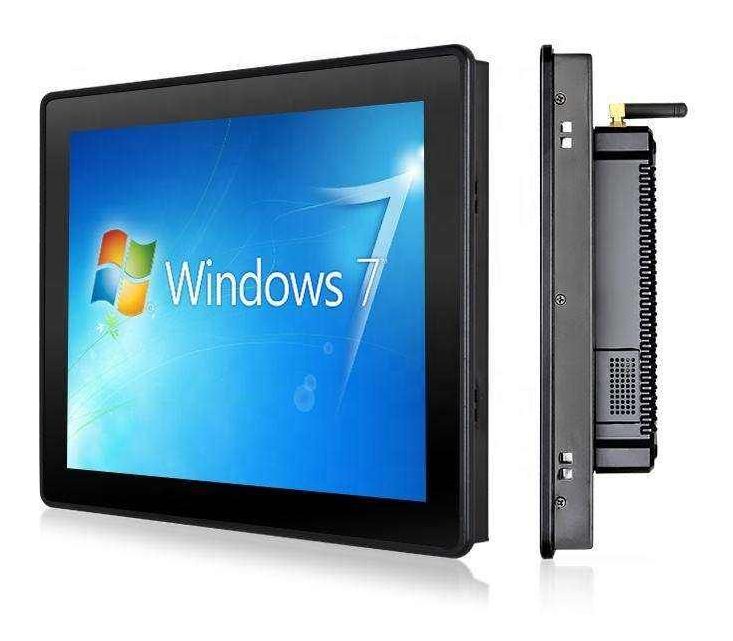
Ingress Protection (IP) ratings use two digits: the first (0-6) rates protection against solid particles like dust, the second (0-9K) rates protection against water. IP65 — commonly quoted for industrial and outdoor-adjacent kiosk fronts, including our own wide-temperature panel PC line — means the front bezel is fully dust-tight (6) and protected against low-pressure water jets from any direction (5), which covers rain, splashes and routine hose-down cleaning. It is not a submersion rating (that starts at IPX7/IPX8), and the rating typically applies to the front bezel and its seals specifically, not automatically to the entire rear enclosure, cable glands or connector ports. Always confirm with your supplier exactly which surfaces and openings the quoted IP rating covers.
7. A touchscreen spec checklist
- ✓ Confirm the technology is PCAP, not resistive or IR, for any public-facing kiosk.
- ✓ Specify 2- or 5-point touch unless your UI genuinely needs 10-point gestures.
- ✓ Request glove-mode firmware explicitly if staff or users will wear gloves.
- ✓ Choose 3-4mm glass for indoor use, 5-6mm for high-traffic or vandalism-prone sites.
- ✓ Ask for an anti-glare coating on screens near windows or bright lighting.
- ✓ Confirm exactly which surfaces an IP65 (or higher) rating covers before assuming full weatherproofing.
Tell us your environment — indoor counter, kitchen, outdoor-adjacent or industrial — and we'll recommend the right glass thickness, touch-point count and IP rating for your kiosk or panel PC project: request a quote.
8. Frequently asked questions
What does PCAP mean on a touchscreen spec sheet?
How many touch points does a kiosk actually need?
Can PCAP screens be used with gloves on?
How thick should the cover glass be on a public kiosk?
What does an IP65 front bezel actually protect against?
Specifying a touchscreen for your environment?
Tell us your use case and site conditions — our engineers will recommend the right glass, touch-point count and IP rating within 24 hours.